
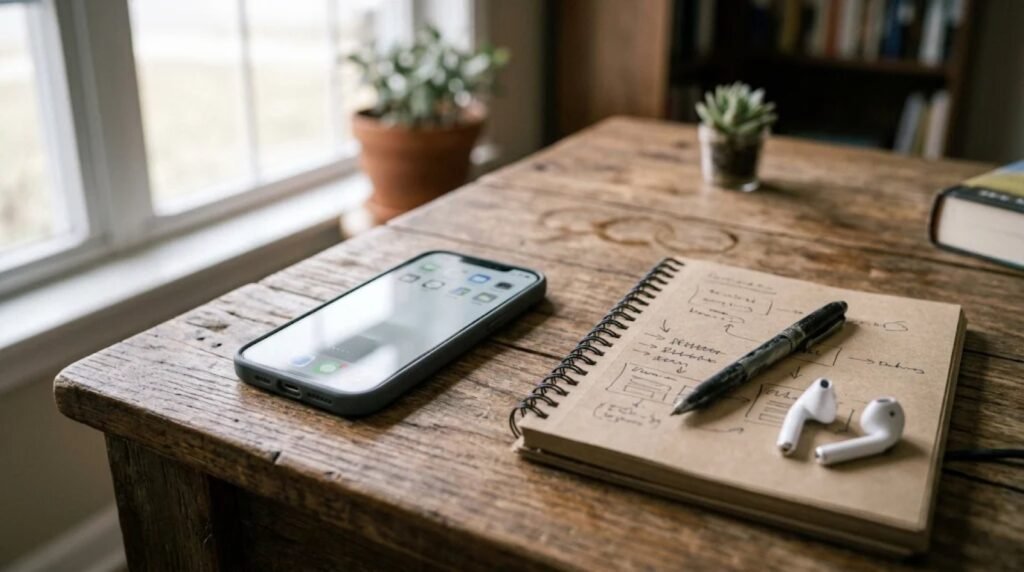
Some of the most useful hidden iPhone features sit in menus most people never open. Apple tucks tools away in Settings, Control Center and the Markup editor, and a few of them solve everyday annoyances, from noisy phone calls to a silent alarm.
Tom’s Guide recently rounded up five of them. We checked the one that matters most for your safety against Apple’s own support page, and we explain where each setting lives below. Menu names can vary slightly between iOS versions.
In this article
1. Impersonation Risk Detection
This is the most important of the hidden iPhone features. Apple’s support page says Impersonation Risk Detection helps catch scams where someone poses as a bank, government agency or trusted contact to pressure you into a payment or account change. It works in apps that support it, starting with iOS 27.
When you take a risky action in a supported app, such as making a payment or changing a password, the app can ask your iPhone for a risk assessment. The result comes back as Unknown, Medium or High. Apple says the analysis happens on the device, that apps receive only the risk level, and that Apple does not analyze the content of your Photos, Messages or Mail. The app decides what to do with the result, such as adding a delay or asking for more verification.
To turn it on, open Settings, tap Privacy & Security, tap Impersonation Risk Detection and turn on Share with App Developers. Apple says changes can take up to 24 hours. It also warns that if someone tells you to turn this feature off, you may be the target of a scam. You can review which apps asked for an assessment under Recent Activity.
2. Voice Isolation
Voice Isolation uses machine learning to favor your voice and filter out background noise such as traffic, chatter and wind. According to Tom’s Guide, it does not live in the main Settings app. Start or answer a call, swipe down from the top-right corner to open Control Center, tap Phone Controls (or Mic Mode) and choose Voice Isolation.
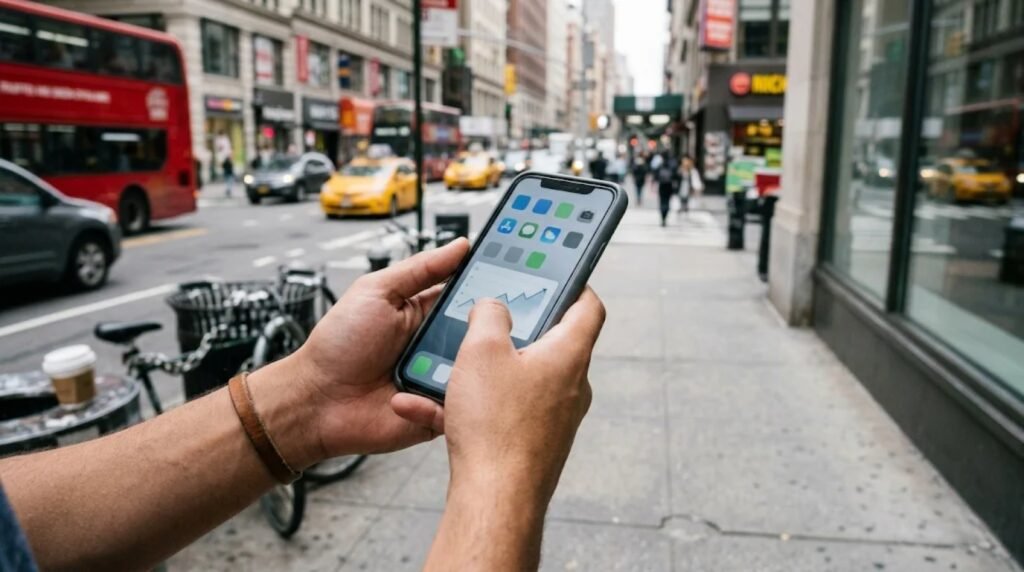
3. Built-in document signing
The Markup tool can save your signature so you can place it on any document without printing anything. Open the document in Files or Photos, or take a screenshot of it, then tap the Markup pen icon. Tap the plus icon, choose Signature, write your name once and tap Done. After that you can drop the saved signature on any document, resize it and move it into place.
4. Unlink alarm volume from ringtone volume
Turning your ringtone down for a meeting can also turn down your alarm. Tom’s Guide says iOS lets you separate the two. Open Settings, tap Sounds & Haptics, and under Alarms & Timers switch off Match Ringtone Volume. Then drag the dedicated slider to the volume you want for your alarm.
5. Screen Distance
Night Shift warms the colors on your screen, but it does not stop you from holding the phone too close. Screen Distance uses the front TrueDepth camera to check how near the screen is. Tom’s Guide says that if you hold the iPhone closer than 12 inches for several minutes, the display pauses with a prompt to move back. Open Settings, tap Screen Time, tap Screen Distance and switch it on.
Which hidden iPhone features should you turn on first?
- **Start with Impersonation Risk Detection.** It is a safety feature, and apps decide how to use it.
- **Add Voice Isolation** if you take calls in noisy places.
- **Fix your alarm volume** if you have ever slept through one.
- **Try Screen Distance** if you hold your phone close and get tired eyes.
Four of the five tips come from Tom’s Guide’s testing, so settings can differ by iPhone model and iOS version. For another recent iOS change, read our report on iOS 27.2 Suggested Actions, and browse all of our Mobile coverage.
Hidden iPhone features FAQ
**Is Impersonation Risk Detection on by default?** Apple’s steps tell you to turn on Share with App Developers in Privacy & Security, so check that it is switched on.
**Does Apple read my messages?** Apple says it does not analyze the content of Photos, Messages or Mail for this feature.
**Do I need a new iPhone?** Apple says the feature works in supported apps starting with iOS 27. For the other tips, check Settings on your device.
Sources: Apple, Tom’s Guide

Leave a Reply